I spent several years of my career thinking CSS transitions were enough. Then I built a landing page using GSAP's ScrollTrigger and watched a client's face light up in a way that no static design had ever produced. GSAP, GreenSock Animation Platform, is the tool that bridges the gap between what you design in Figma and what actually moves on screen. This is everything I wish I'd known when I started.
01Why GSAP Over CSS Animations?
CSS animations are great for simple, self-contained transitions, a button hover, a modal fade-in, a colour change. But the moment you need to sequence multiple elements, scrub an animation to a scroll position, or chain dozens of steps into a coherent motion story, CSS becomes a maintenance nightmare of animation-delay stacking and keyframe arithmetic. GSAP handles all of that in a single, readable API.
Performance is the other reason. GSAP's engine is heavily optimised for the browser's compositor, it batches DOM reads and writes, avoids layout thrashing, and defaults to GPU-accelerated properties like transform and opacity. In head-to-head performance benchmarks, GSAP consistently outperforms equivalent CSS animations in frame rate consistency, particularly on mobile. The GreenSock team has been solving these problems since 2008, and it shows.
Finally, GSAP plays nicely with the micro-interactions you've already designed. Anything you can prototype in Figma using Smart Animate, you can implement with more precision and control using GSAP, with the added bonus of timeline scrubbing, physics-based easing, and scroll-driven playback that Figma simply can't replicate.
"CSS gives you a paintbrush. GSAP gives you a full animation studio. For anything beyond simple transitions, reach for GSAP."
02Core API: to, from, and fromTo
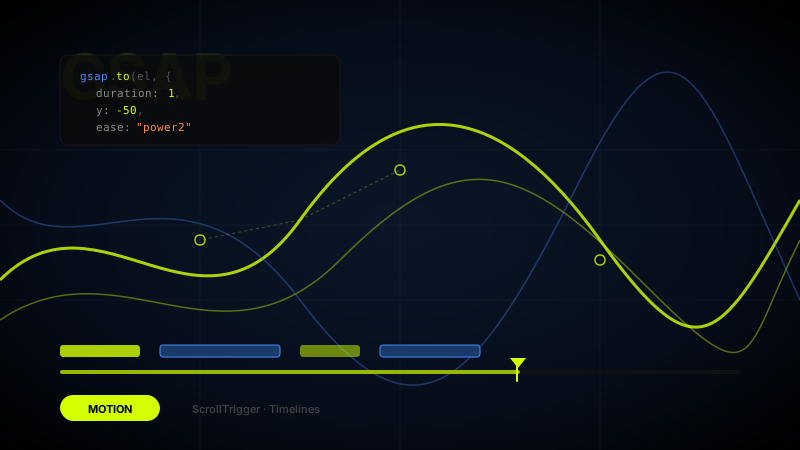
GSAP's three workhorses are gsap.to(), gsap.from(), and gsap.fromTo(). Understanding when to use each one saves hours of debugging. gsap.to() animates an element from its current state to the values you specify, it's what you'll use most often. gsap.from() animates from the values you specify to the element's current state, which is perfect for entrance animations where you want an element to arrive from off-screen or from invisible. gsap.fromTo() gives you explicit control over both the start and end state, which matters when you can't rely on CSS to set a known starting point.
Every GSAP tween accepts a vars object as its second argument. Beyond the obvious animation properties (x, y, opacity, scale, rotation), this object controls duration, delay, easing, and callbacks. The onComplete callback is particularly useful for triggering secondary animations or removing a loading class once an entrance animation finishes. Here's a pattern I use constantly, fading cards in with a stagger on page load:
Common GSAP Tween Properties
duration, animation length in seconds (not milliseconds like CSS)delay, wait before starting, in secondsease, easing curve, e.g."power2.out","expo.inOut","elastic.out(1, 0.5)"stagger, when targeting multiple elements, offset each by this many secondsonComplete, callback fired when the tween finishesoverwrite, set to"auto"to prevent conflicts when re-triggering animations
03Timelines: Sequencing Complex Motion
A GSAP Timeline (gsap.timeline()) is a container for multiple tweens that play in sequence. Without timelines, chaining animations means stacking delays manually, change one duration and every subsequent delay breaks. Timelines solve this completely: each tween in a timeline starts where the previous one ends, and adjusting a duration automatically cascades through the sequence.
The position parameter is the timeline's superpower. By default, each tween follows the previous one. But you can pass a position to start a tween at an absolute time ("1.5"), relative to the timeline end ("-=0.3" to overlap by 0.3 seconds), or at a labelled point you've named yourself. This is how you build sophisticated motion, a hero section where the headline appears, then the subline starts while the headline is still moving, then the CTA button pops in just before the subline finishes. That kind of overlapping choreography is trivial in a timeline and genuinely painful to achieve any other way.
Good timelines also read like a script. I name each tween with a comment describing what it does, so future-me (or a developer reading the code) can understand the motion story in plain English without tracing through property values. Think of it the same way you'd annotate your Figma prototype handoff, clarity for the next person who opens the file.
"A GSAP timeline is a choreography script. When it reads clearly, the motion it produces feels intentional, not accidental."
04ScrollTrigger: Scroll-Driven Animation
ScrollTrigger is GSAP's plugin for linking animation playback to scroll position, and it's the feature that has the most visible impact on the sites I build for clients. At its simplest, you pass a scrollTrigger property inside a tween's vars, and that animation plays when the element enters the viewport. At its most advanced, you scrub an entire timeline forward and backward as the user scrolls, creating the parallax storytelling effects you see on award-winning sites.
The two most useful ScrollTrigger patterns in real projects are pin-and-scrub and stagger-on-enter. Pin-and-scrub pins a section in place while the user scrolls, advancing a timeline as they do, ideal for product feature showcases or step-by-step explainers. Stagger-on-enter triggers a staggered entrance animation when a grid of cards or a list of items scrolls into view, a four-line addition to your existing tween that makes a page feel polished and considered.
One thing that trips people up: ScrollTrigger's start and end values use a two-word syntax, "trigger position viewport position". So start: "top 80%" means "start when the top of the trigger element reaches 80% down the viewport." Once this clicks, configuring triggers becomes intuitive. I always set markers: true during development to visualise the trigger and end points as coloured lines on screen, remove them before pushing to production.
ScrollTrigger Setup Checklist
- Register the plugin first:
gsap.registerPlugin(ScrollTrigger) - Use
markers: trueduring development to debug start/end positions - Set
invalidateOnRefresh: truefor responsive layouts where element positions change on resize - Use
once: truefor entrance animations you only want to fire once, not on scroll-back - Pair
scrub: 1(notscrub: true) for smooth timeline scrubbing with a small lag that feels natural
05Easing: The Feel Behind the Motion
GSAP's easing library is one of its most underused features. Most developers default to "power2.out" for everything and call it done. But easing choice is what separates motion that feels designed from motion that feels like a template. The GreenSock ease visualiser (available at gsap.com/resources/getting-started/easing) lets you audition every built-in ease with a live preview, spend 20 minutes there and you'll immediately see how dramatically easing affects perceived quality.
For UI entrances, I almost always reach for "expo.out", a fast start that decelerates sharply, giving elements a snappy, confident arrival. For elements leaving the screen, "expo.in" or "power3.in" creates an acceleration that feels intentional rather than lazy. For elastic or bouncy moments, a success state, a notification badge, "elastic.out(1, 0.5)" adds personality without being cartoonish. Match the easing character to the personality of your visual design, just as you'd match tone of voice to a brand.
Custom easing is also possible using GSAP's CustomEase plugin, which accepts an SVG path as its curve definition. This is how you replicate the exact spring curves from your Figma micro-interaction prototypes in code, export the bezier curve from your Figma prototype settings and paste it directly into CustomEase.create(). The result is production motion that matches the designed motion exactly, which is rarer than it should be.
06Performance, Accessibility & Production Tips
Always animate transform and opacity properties wherever possible. These two properties bypass layout and paint entirely, the browser hands them directly to the GPU compositor, which means smooth 60fps animation even on mid-range mobile devices. Animating width, height, top, left, or margin triggers full layout recalculation on every frame, which is the fastest way to produce janky animation. GSAP's x and y properties map to translateX and translateY respectively, use those instead of left and top.
Respect prefers-reduced-motion. This is non-negotiable. Users with vestibular disorders can experience genuine physical discomfort from scroll-driven parallax and large-scale motion. The correct implementation wraps your GSAP initialisation in a media query check and either skips the animations entirely or replaces them with simple fade-only alternatives. GSAP makes this easy, check window.matchMedia("(prefers-reduced-motion: reduce)").matches before registering ScrollTrigger and skip the motion code if it returns true. This applies to every website, every product, no exceptions.
For production builds, import only the GSAP modules you use rather than the entire bundle. If you're only using gsap.to() and ScrollTrigger, import those two and nothing else. Tree-shaking handles the rest in modern bundlers. Also: kill ScrollTrigger instances when navigating away in single-page apps, leaked ScrollTrigger instances accumulate silently and cause memory and performance issues in long sessions. The same discipline you apply to design systems, clean, deliberate, no leftovers, applies equally to your animation code.
Motion is a design material, treat it like one
The best GSAP work I've shipped barely gets noticed. Not because it's subtle for subtlety's sake, but because it feels so natural that users don't register it as an effect, they just feel the page is alive and responsive. That's the goal. Learn the API, study real easing curves, respect motion preferences, and keep your timelines readable. When the code is clean, the motion takes care of itself.
FAQ
Common questions about GSAP Animation Guide: Scroll Effects, Timelines & Motion for the Web
A quick summary of the most common questions readers have about this topic.
GSAP is used to create smooth, high-performance animations for websites and apps, including timelines, hover effects, page transitions, and scroll-driven motion.
For simple transitions, CSS is often enough. For complex sequencing, scroll-linked animation, and richer motion systems, GSAP gives far more control and reliability.
ScrollTrigger is a GSAP plugin that links animations to scroll position, making it easier to build reveal effects, pinned sections, scrubbed motion, and storytelling layouts.
It can perform very well when used carefully with transform and opacity-based animations. Problems usually come from over-animating too many elements or animating layout-heavy properties.
Yes. It is one of the best tools for bridging visual motion ideas into production-quality frontend animation because the API is expressive and scalable.