The difference between an interface that feels alive and one that feels flat is rarely a dramatic visual overhaul, it is almost always the micro-interactions. These tiny, purposeful animations and feedback moments communicate system state, guide attention, and reward action in ways that static design simply cannot. Get them right and users feel at ease; get them wrong and they cause friction without users being able to explain why.
01 What Are Micro-Interactions?
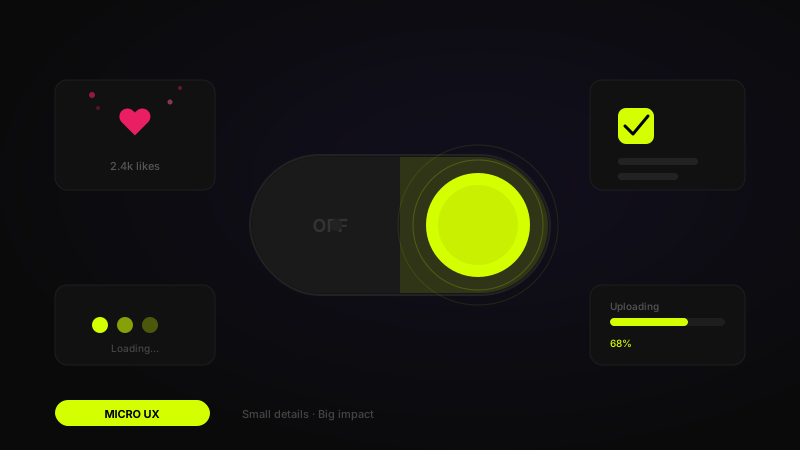
Micro-interactions are contained product moments that accomplish a single task. The toggle that slides and changes colour when you enable dark mode. The heart icon that pulses when you like a post. The shake animation on a login form when the password is incorrect. These are not decorative, they are functional signals that confirm an action was received and communicate what happened next.
The term was popularised by Dan Saffer in his 2013 book of the same name, but the concept is as old as interface design itself. Every well-designed physical object has micro-interactions: the satisfying click of a mechanical keyboard key, the resistance of a quality door handle. Digital micro-interactions are our equivalent, the tactile layer of a medium that has no physical substance.
Before designing any micro-interaction, revisit the foundational UI design principles that govern feedback and affordance. A micro-interaction that violates these principles, for instance, an animation that plays in a direction opposite to what the user expects, will feel jarring rather than delightful.
02 The Four Components
Dan Saffer's framework breaks every micro-interaction into four parts: trigger, rules, feedback, and loops and modes. The trigger is what initiates the micro-interaction, a tap, a swipe, a system event like a push notification arriving. Rules define what happens after the trigger: which elements move, how far, how fast. Feedback is the perceptible output, what the user sees, hears, or feels. Loops and modes handle what happens over time: does the animation repeat? Does a mode persist until manually dismissed?
Working through this framework for every interaction you design prevents the two most common micro-interaction mistakes: feedback that fires without a clear trigger (confusing), and triggers that fire with no feedback at all (invisible). Both break the fundamental contract of a responsive interface, that actions produce visible, predictable reactions.
"The details are not the details. They make the design. The best micro-interactions are invisible, they just make everything feel right."
03 Types and Where to Use Them
System status micro-interactions communicate what the product is doing: loading spinners, progress bars, skeleton screens, and upload indicators all fall into this category. These are the highest priority micro-interactions to get right because they prevent users from assuming the product has broken. A progress bar that accurately reflects completion feels dramatically faster than a spinner with no indication of progress, even when the actual load time is identical.
Data input micro-interactions provide real-time validation feedback: a password strength meter that updates as you type, a character counter that turns red near the limit, a checkmark that appears when an email address format is valid. These reduce form abandonment by surfacing errors before the user submits, making the error recovery process feel immediate rather than punishing.
Reward and delight micro-interactions, confetti on a completed goal, a character animation on an empty state, a satisfying bounce on a successful payment, are the category most prone to overuse. Reserve them for genuinely significant moments. If everything is delightful, nothing is. Apply the same discipline here that you would to your UX workflow: validate that the interaction serves the user, not just the product team's enthusiasm.
Micro-Interaction Type Reference
- System status: loaders, progress bars, skeleton screens, sync indicators
- Data input: inline validation, character counters, password strength meters
- Action confirmation: button state changes, success messages, undo toasts
- Navigation: page transitions, drawer slides, tab indicator movement
- Reward: confetti, celebration animations, use sparingly for peak moments only
04 Animation Principles for UI
The twelve principles of animation from Disney's classic animators apply directly to UI motion, but three matter most in digital interfaces. Easing, the acceleration and deceleration of a moving element, is the single most important animation property for making motion feel natural. Use ease-out (fast start, slow finish) for elements entering the screen, ease-in (slow start, fast finish) for elements leaving, and ease-in-out for state changes within the same position.
Duration is the second critical property. Most UI micro-interactions should be between 100ms and 300ms. Below 100ms and the motion is imperceptible, you lose the communicative value entirely. Above 400ms and the animation starts to feel slow and performative, adding waiting time rather than reducing perceived effort. The sweet spot for button state changes is 150–200ms. For larger panel transitions, 250–350ms feels fluid without dragging.
The third principle is purposeful direction. Motion should reinforce spatial relationships, a modal that slides up from the bottom communicates that it can be dismissed by swiping down. A notification that slides in from the top-right and out to the same corner teaches the user where that notification system lives. Every movement should tell a story about the structure of your interface.
"Animation duration is one of the most under-examined design decisions. A 50ms difference between feeling snappy and feeling sluggish is genuinely that small."
05 Figma Prototyping Tips
Figma's Smart Animate is the most powerful tool for prototyping micro-interactions without code. To use it correctly, your component variants must share the same layer names and structure, Smart Animate morphs between matching layers, so a button variant where the icon layer is named "icon" in both states will animate that icon smoothly. Rename your layers before building interactions, not after.
For interactions that require more nuance than Smart Animate provides, spring physics, gesture-based swipes, scroll-driven animations, use Figma's Variables and Expressions feature to prototype conditionally, or export a key interaction to ProtoPie for high-fidelity motion testing. Showing a client or developer a ProtoPie prototype of a complex gesture interaction is far clearer than any amount of written specification.
Always test your Figma prototype on a real device before presenting or testing with users. Animations that look perfectly timed on a desktop monitor can feel sluggish or fast on a phone screen. Use Figma Mirror on the target device type to verify timing, and adjust durations accordingly, mobile interactions typically benefit from being 10–20% faster than desktop equivalents.
Figma Micro-Interaction Checklist
- Layer names match across component variants for Smart Animate to work correctly
- All animation durations reviewed on a real device, not just Figma desktop preview
- Easing curves are set explicitly, never use the default Linear easing for UI transitions
- Complex gesture interactions are prototyped in ProtoPie for developer reference
06 When NOT to Use Micro-Interactions
Micro-interactions can cause serious accessibility harm when misapplied. Users with vestibular disorders, a condition affecting millions, can experience nausea, vertigo, or headaches from excessive motion on screen. The prefers-reduced-motion media query exists precisely for this reason: always implement it in code, and design a functional non-animated alternative for every micro-interaction in your system.
Avoid micro-interactions on elements that users interact with repeatedly in quick succession. A satisfying animation on a "save" button is pleasant the first time. It is frustrating by the fifteenth time a power user presses it in a single session. High-frequency actions need instant, imperceptible confirmation, not choreography. Similarly, in enterprise or productivity tools where speed is the primary value, restraint in motion almost always produces better outcomes than expressiveness.
The relationship between micro-interactions and your broader visual system matters too. In a dark mode interface, motion that uses opacity transitions can feel more refined than positional movement, because high-contrast edges in dark themes make positional animation more visually aggressive. Match the character of your motion to the character of your visual design.
Micro-interactions are the punctuation of interface design, rarely the first thing you notice, but immediately apparent when they are wrong. Invest in them deliberately: define your motion tokens, prototype on real devices, and always implement reduced-motion alternatives. When the details are right, users will not be able to articulate why your product feels so good, and that is exactly the point.
FAQ
Common questions about Micro-Interactions in UI Design: Why Small Details Make a Big Difference
A quick summary of the most common questions readers have about this topic.
Micro-interactions are small, focused moments of interface behavior that respond to a user action or system event, such as toggles, button feedback, validation, or loading states.
They improve usability by confirming actions, communicating status, guiding attention, and making interfaces feel more responsive and understandable.
Yes. When they are overused, too slow, distracting, or disconnected from the task, they create friction instead of delight.
Examples include button state changes, inline form validation, progress indicators, pull-to-refresh feedback, tab transitions, and subtle success confirmations.
Use them where they improve feedback, clarity, or task flow. Skip them when they add noise, slow the interface, or compete with the primary action.